For twenty years the playbook was simple. You optimized your website for Google, paid for Shopping ads, and waited for clicks. That playbook still works, but the discovery layer on top of it has changed. Hundreds of millions of people now start their buying journey inside an AI assistant. They ask things like best modular kitchen designer in Gurgaon or where can I buy a standing desk under 300 dollars, and they expect a direct, confident answer with real products attached.
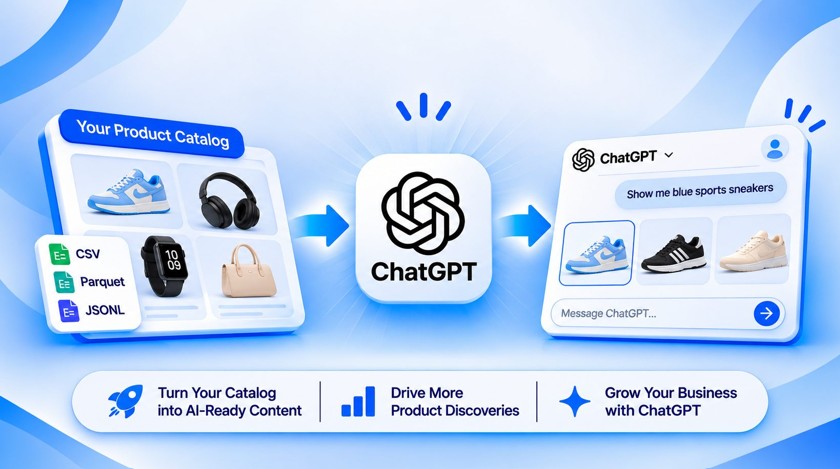
ChatGPT’s product feed, managed through Business Hub, is how your catalog gets into those answers. Once your feed is live, your products can surface in ChatGPT responses when they match what someone is looking for. They also appear in your business side panel, so people who find your business can browse everything you offer without leaving the conversation.
This is the core of what marketers now call GEO, generative engine optimization. Just as SEO made your pages legible to Google, GEO makes your products legible to AI assistants. The businesses that set up their feeds early are building a compounding advantage, because every answer ChatGPT gives is one more touchpoint competitors are not part of.
Products on ChatGPT are a structured catalog that you connect to your claimed business profile. Think of it as the AI-era cousin of a Google Merchant Center feed. You give ChatGPT a file with your product names, prices, descriptions, images and links, and ChatGPT uses that data to decide when your products are relevant to a conversation.
A few things worth understanding upfront:
One honest caveat: product feeds cover product data only. They do not create or claim your business profile, and they do not guarantee that ChatGPT recommends your products. The feed is the input. Relevance and quality decide the output.
Product feeds live inside ChatGPT Business Hub, so the prerequisite is a claimed and verified business profile. If you have not claimed your business yet, do that first, because the Products tab only becomes useful once your profile is approved.
As of November 2026, OpenAI has not announced any fee for submitting a product feed. You do not need a ChatGPT Enterprise plan or an ads account to upload one. Advertising inside ChatGPT is a separate, paid product, and pricing there may evolve as the platform matures, but the organic product feed itself is free to submit.
Ten minutes of prep saves an hour of fixing validation errors later. Here is the short checklist we recommend working through before you touch the upload button:
A useful way to think about the file: write every field as if a person, not a crawler, will read it. ChatGPT reasons over your catalog in natural language, so vague or keyword-stuffed rows help no one.
ChatGPT accepts a handful of formats, and the upload screen spells out the rules. Here’s how you can prepare:
Our recommendation: if you are uploading by hand, a plain CSV with a clean header row is the friendliest format to debug. When your catalog grows, or you want automated refreshes, move to Parquet and a hosted URL.
Everything below is exactly what you will see in Business Hub. We completed this flow for a real interior design catalog, and every screenshot is unedited except for the rounded presentation frame.
Step 1: Open the Products tab in Business Hub
Sign in to ChatGPT and open the Business Hub from the sidebar, then navigate to the Products section. You will see three tabs: Feeds, Upload history and Issues. On a first visit the Feeds tab is empty, with a single Add products button top right and a friendly nudge in the middle of the screen: bring your products into the conversation.
The middle message is worth reading once, because it states the value plainly. Your latest products appear in ChatGPT responses when they match what people are looking for, and they show up in your business side panel so people can explore your full range.
Step 2: Click Add products and name your feed
Click the Add products button, either the one top right or the pill in the center of the screen. The first screen asks for a product feed name. This is optional, but name it something your team will recognise in six months, especially if you plan to run multiple feeds later.
A naming convention like business line, source, format works well: Interior Designer – Excel Upload tells anyone on the team what this feed is and where it came from. Select Next.
Step 3: Choose how you will supply the catalog
Business Hub offers three ways to get your products in. Each suits a different situation:
Upload a product data file: Best for one-time or occasional updates. Import a Parquet file or a text feed from your device.
Use a hosted URL: Best for keeping products updated from a file hosted online. Ideal when your catalog changes often.
Connect with SFTP: Best for importing products over SSH File Transfer Protocol. The enterprise option for large, automated catalogs.
For a first upload, choose Upload a product data file. It is the simplest path and the one this guide follows. You can always add a hosted feed later once the catalog format is stable. Note the View product feed format link at the bottom of every screen in this flow: it opens OpenAI’s field-by-field specification, and you should keep it open in a second tab while preparing your file.
Step 4: Drop in your product feed file
The next screen is a drop zone. Drag your file in, or click to browse. Below the drop zone, the accepted formats and limits are listed in plain language:
Use .parquet (preferred), .jsonl.gz, .csv.gz or .tsv.gz. Parquet supports internal compression such as Zstandard.
Use UTF-8 for text files. In JSONL, put one product object on each line. In CSV or TSV, start with a header row and put one product on each following row.
Uncompressed .csv, .tsv and tab-separated .txt files are also accepted.
Choose a file up to 20 MiB. Gzip files must also be 20 MiB or smaller after decompression. Use hosted URL or SFTP for larger files.
This is the moment where file hygiene pays off. Before dragging the file in, open it and check three things: the header row uses the exact field names from the feed specification, every row has a real price value, and there are no stray blank rows at the end of the sheet.
Step 5: Let ChatGPT validate a sample
Once the file lands, Business Hub shows a Preview products screen with a spinner and the message Validating product sample. ChatGPT does not validate your entire file at this stage. It checks a sample of rows, which is fast, and it is honest about its own limits, as you will see in a moment.
Do not navigate away while this runs. It usually finishes in under a minute for a small catalog.
Step 6: Fix any invalid product fields
If the validator finds problems, it lists them by sample row, with a Why and a How to fix for each one. In our first attempt, several rows failed on price. The error read: No specific validation reason was saved for price, with guidance to check the price against the linked file requirements, and if the value looked valid, to share the feed details with OpenAI support.
Two practical lessons here. First, zero or blank prices fail more often than any other field, so put a real number in even if the price is negotiable. Second, the validator’s advice to open a support thread is genuine. If you are confident a value is correct and it still fails, OpenAI support can look at the saved validation details for your feed.
Fix the errors in your source file, then upload the file again. There is no penalty for iterating.
Step 7: Review the preview and confirm
With the errors fixed, the preview comes back clean. Business Hub shows up to eight sample rows with the fields it cares about most, in our case Name and Price, and a green confirmation banner: No errors found in the sample. Checked 8 sample rows, 0 rows have errors.
Read the smaller print under the banner carefully, because it tells you three useful things. First, the countries allowed for this feed, IN in our case. Second, that ChatGPT used IN for the eight sampled products that were missing a target_countries field. Third, and most important: only a sample was checked, and processing the full feed plus downloading images can reveal additional issues. Treat a green sample as progress, not a guarantee.
Scan the sample rows the way a customer would. Do the product names read naturally? Would someone searching in their own words find these products? Names like turnkey home interior design for flats and villas in Gurgaon and Delhi NCR work well precisely because they mirror how people actually ask.
Step 8: Confirm and submit
When the preview looks right, select Confirm. Business Hub shows a Submitting products screen while it hands the file over for processing.
Step 9: Processing takes minutes to hours
The confirmation screen sets expectations honestly: your products are being checked before they can appear on your business profile, and this may take a few minutes to a few hours. During this window the full catalog is processed and product images are downloaded and checked, which is why issues can surface here that the sample validation never saw.
Step 10: Your feed goes live in the Feeds list
Once processing finishes, your feed appears in the Feeds tab with its name, last updated timestamp and ingestion method. The Issues tab is where any problems with the live feed will be reported, and Upload history keeps a record of every file you have submitted, so you can always trace what went live and when.
That is the whole flow. Ten steps, one file, and your catalog is now eligible to appear inside ChatGPT conversations and your business panel. The work that follows is not technical. It is about keeping the feed accurate and writing product data that an AI can confidently recommend.
| Dimension | Google Merchant Center | ChatGPT product feed |
|---|---|---|
| Where products appear | Google Search, Shopping tab, YouTube, Performance Max | ChatGPT responses and the business side panel |
| How users encounter them | Keyword queries and ad placements | Conversational questions and recommendations |
| Intent type | Captured intent: people already searching | Guided intent: people exploring options in dialogue |
| Primary levers | Bids, feed optimization, ad creative | Feed completeness, description quality, business verification |
| Cost to list | Free listings exist; ads are paid | No fee announced at launch |
| Update methods | Scheduled fetches, SFTP, API, Content API | File upload, hosted URL, SFTP, Shopify feed |
| Format expectations | Strictly specified attributes with enforced enums | Parquet preferred; JSONL, CSV and TSV accepted; more flexible |
| Measurement | Impressions, clicks and conversions at scale | Mentions and presence inside conversations; tooling still maturing |
| Best suited for | High-volume, price-comparison-driven purchases | Considered purchases where advice shapes the decision |
The strategic read is simple. Merchant Center wins the moment of search. ChatGPT products win the moment of advice. If your customers ask questions before they buy, which is true for anything priced above impulse level, a ChatGPT feed puts you inside the conversation where the shortlist gets built.
Traditional product feeds were written for matching algorithms: part numbers, keyword repeats, all-caps attributes. AI assistants read your catalog more like a knowledgeable salesperson would. That changes how you should write it.
Name products the way people ask for them
Our sample rows used names like modular kitchen design and installation, Gurgaon and Delhi and complete home renovation in Gurgaon, turnkey civil to handover. These work because they contain the service, the scope and the location in one natural phrase. A name like MK-2026 Premium says nothing to a person, and now nothing to the model either.
Write descriptions that answer real questions
For every product, answer the three questions a buyer always has: what exactly is included, who is it for, and what does it cost or how is pricing determined. AI assistants quote and paraphrase feed content when they justify a recommendation. Give them accurate sentences to work with.
Keep prices honest and parseable
Use a clear number with a recognised currency. Avoid 0.00 for negotiable pricing; it failed validation in our own upload and, even when it passes, it reads as unpriced to a model deciding whether to recommend you.
Set target countries deliberately
In our upload, ChatGPT defaulted missing target countries to IN because the business is Indian. Do not rely on that. Set target_countries explicitly so your products only surface where you can actually fulfil.
Refresh on a schedule
Prices change, stock runs out, services get renamed. A stale feed is worse than none, because it trains the model on information you no longer stand behind. For anything beyond a handful of SKUs, move to a hosted URL so the catalog stays current automatically.
The GEO rule of thumb: every field in your feed should read like a truthful sentence a helpful salesperson would say out loud. If it sounds written for a robot, rewrite it for a person.
Four issues account for nearly every failed upload we have seen or documented. Here is what they look like and how to fix them:
Digital Transformation Marketing Stack for Physical Retail Enterprises.